 SeoAudit
Write a product-specific meta description and describe meaningful image content with clear alt text. Review one product pattern at a time, save the edits, and inspect the page before repeating the pattern. Missing-field warnings identify work to review; they do not justify automatically filling every field with the same text.
These fields do different jobs
The meta description summarizes the page for a potential search visitor. Image alt text describes meaningful image content for situations where the image is not available or is being interpreted through assistive technology. Reusing the same promotional paragraph in both fields misses those different purposes.
Start by looking at the product and the image. A useful description can mention a specific use or distinction. Useful alt text describes the relevant view or detail without repeating an unrelated sales pitch.
| Content | Question to answer | Avoid |
|---|---|---|
| Meta description | What useful information is on this product page? | The same generic pitch across many products |
| Main product image | What does this image show? | A filename or a keyword list |
| Detail image | Which detail or angle is visible? | Repeating the main image description without looking |
| Decorative theme image | Does it convey information? | Assuming every theme image needs product alt text |
Review an import before bulk editing
Supplier data can contain useful specifications alongside generic marketing text. Review a sample and identify which details are reliable. Keep measurements, material names, compatibility, and variant differences tied to the actual product.
If you use a template, make the variable fields explicit and inspect the output. A catalog full of repeated descriptions is easier to produce than it is to make useful. Avoid adding claims that the supplier data or product page does not establish.
Example: write a description and two different image alternatives
For an illustrative natural-canvas tote, begin with product details you have verified. The description can summarize useful buying information; each image alternative should describe the specific view. Do not carry these claims into a different product merely because its filename looks similar.
| Field | Before | Illustrative revision |
|---|---|---|
| Meta description | Shop the best bags today. | See dimensions and care instructions for a natural-canvas tote with an internal pocket and shoulder straps. |
| Front-view image alt | bag.jpg | Natural canvas tote, front view with shoulder straps |
| Pocket detail image alt | Natural canvas tote, front view | Inside pocket and top stitching of the canvas tote |
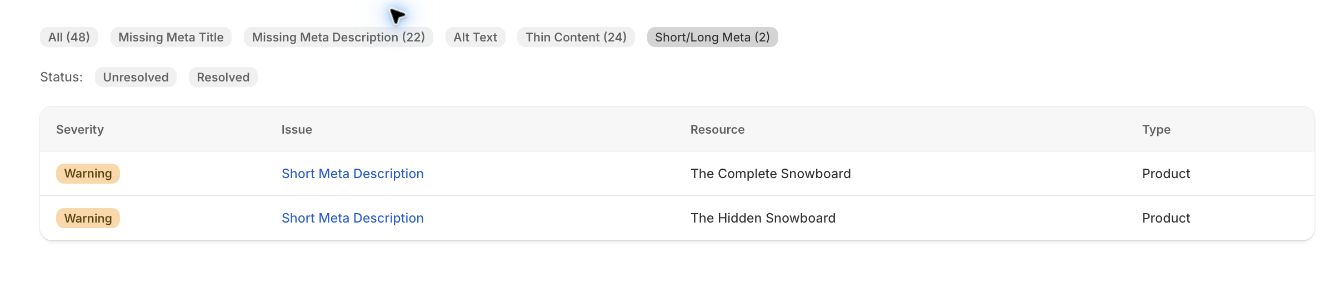
Use the product search-listing and image editors
On desktop, open Products and choose the correct product. In Search engine listing, select the pencil icon, edit Page title or Meta description, and save. Keep the URL handle unchanged when this task is only a text review.
For an image, open that product’s image, choose Edit alt text, enter text describing the actual view, and choose Save alt text. Repeat for the meaningful images; the correct alternative can differ between front, back, and detail photographs.
- Reopen the saved product and confirm the intended field values.
- Open its storefront URL and inspect the title and meta description in the page HTML.
- Inspect the displayed image’s alt attribute and check that it matches that image.
- If the theme output differs from the stored values, investigate the theme or another app.
- Run a fresh SeoAudit review, then track search performance separately.
Treat thresholds as prompts
A short description might omit essential context, or it might already explain a simple product clearly. A long title might be less readable, but shortening it should preserve what distinguishes the product. Use the warning to ask a question instead of treating the threshold as a universal rule.
SeoAudit reports supported metadata, image, and content findings. It does not automatically rewrite the fields, prove accessibility across a rendered page, or guarantee the search snippet that Google will display.
Use a final editorial checklist
Before repeating the pattern across a larger product group, review the result with someone who knows the catalog. Make sure the text is accurate, useful, and consistent with the visible page.
- Does the description identify this product rather than any product in the category?
- Does the image description match the actual view?
- Are specifications and claims supported by the product information?
- Have you verified the saved storefront output?
- Are search performance and audit findings being measured separately?
What should the storefront HTML contain?
For the example, the description meta element should contain the saved product summary and the front-view image should have the front-view alternative. The gallery’s pocket photograph should have its own description.
A stored-field audit and a browser inspection answer different questions. If the saved text is correct but the HTML still shows old copy, check the actual theme output before repeating a bulk edit. Google can also choose a different search snippet; a matching meta description does not promise identical search-result text.
How this guide was checked
Instructions and examples reviewed by SHWRK.
- Editor controls were checked against Shopify’s product and SEO documentation. Examples were checked for consistency between product claims, image view, and field purpose.
- The proposed copy is illustrative, not copied from a changed merchant product. The development-store screenshot records findings only.
Sources and further reading
Shopify behavior can change. Consult the current documentation and your store settings before making changes.
See where SeoAudit fits
Review Shopify metadata, image alt text, and content findings with SeoAudit. Open affected resources, make your own edits, and run another audit to check them.